
Claude Code Desktop API Key — Developer Mode Setup Guide
How to enable Developer Mode in Claude Code Desktop and configure a custom API key and base URL with APIMaster.ai. Use Claude Sonnet 4.6, Opus 4.8, and other models at up to 70% off.
Claude Code Desktop is Anthropic’s desktop agent app with a Code mode. Point Configure third-party inference at APIMaster.ai to use marketplace models without an official subscription.
This guide is for the desktop app, not the Claude Code CLI. Get an API Key and copy model ids from the marketplace.
Prerequisites
- Claude Code Desktop installed (Windows or macOS).
- APIMaster API Key from the console.
- Developer Mode enabled (required for gateway settings).
Step 1 — Enable Developer Mode
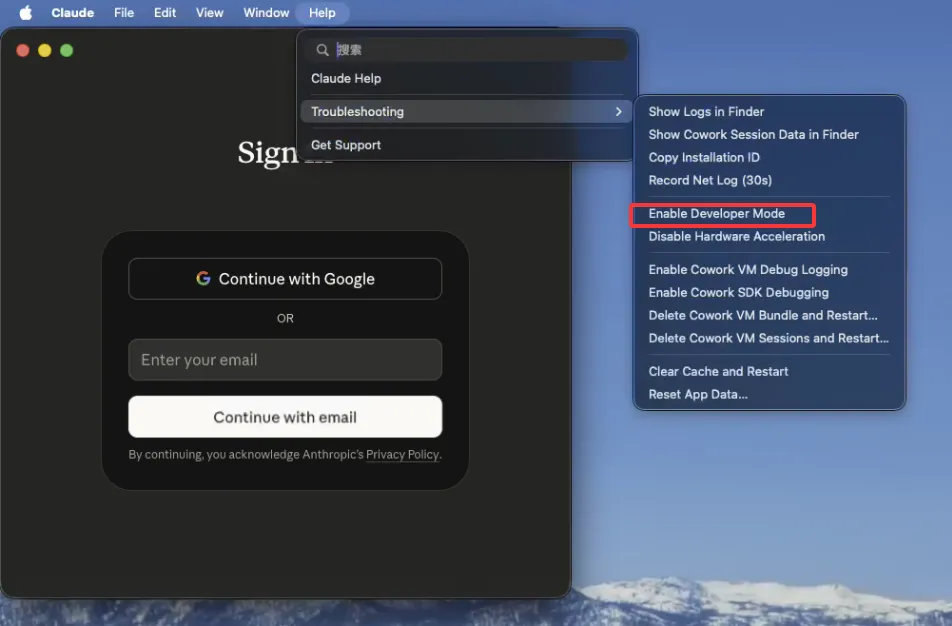
macOS
Help → Troubleshooting → Enable Developer Mode (menu bar).
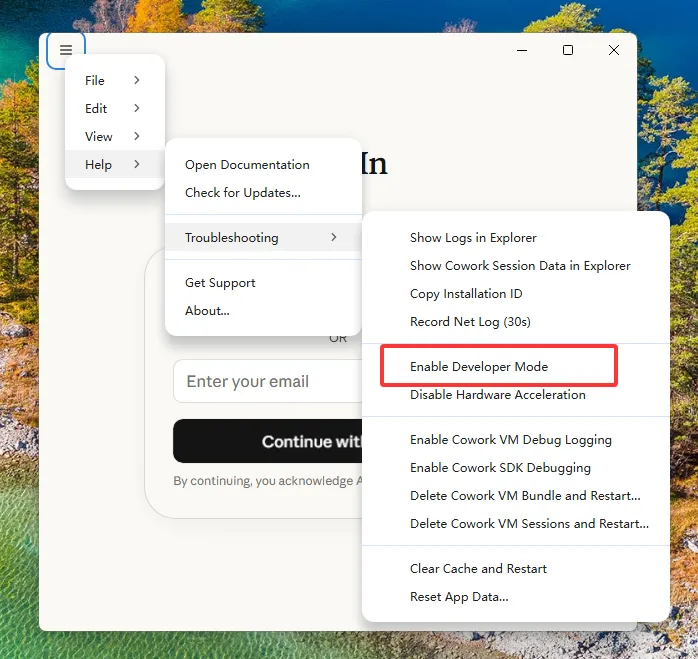
Windows
☰ Menu → Help → Troubleshooting → Enable Developer Mode.
Step 2 — Open third-party inference settings
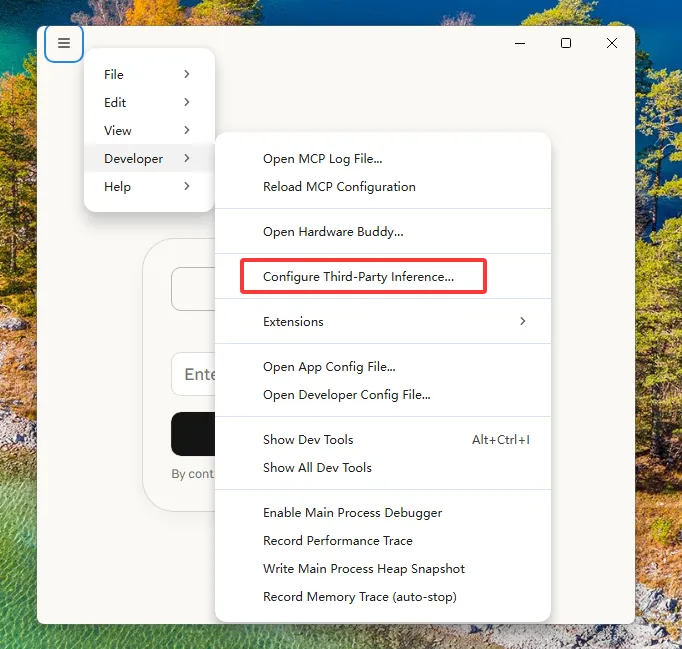
Windows
☰ Menu → Developer → Configure Third-Party Inference…
macOS
Developer → Configure Third-Party Inference… (menu bar, same item as Windows).
Step 3 — Gateway connection (both platforms)
In Configure third-party inference, open Connection:
| Field | Value |
|---|---|
| Credential kind | Static API key |
| Gateway base URL | https://apimaster.ai/ |
| Gateway API key | Your APIMaster key |
| Gateway auth scheme | x-api-key |
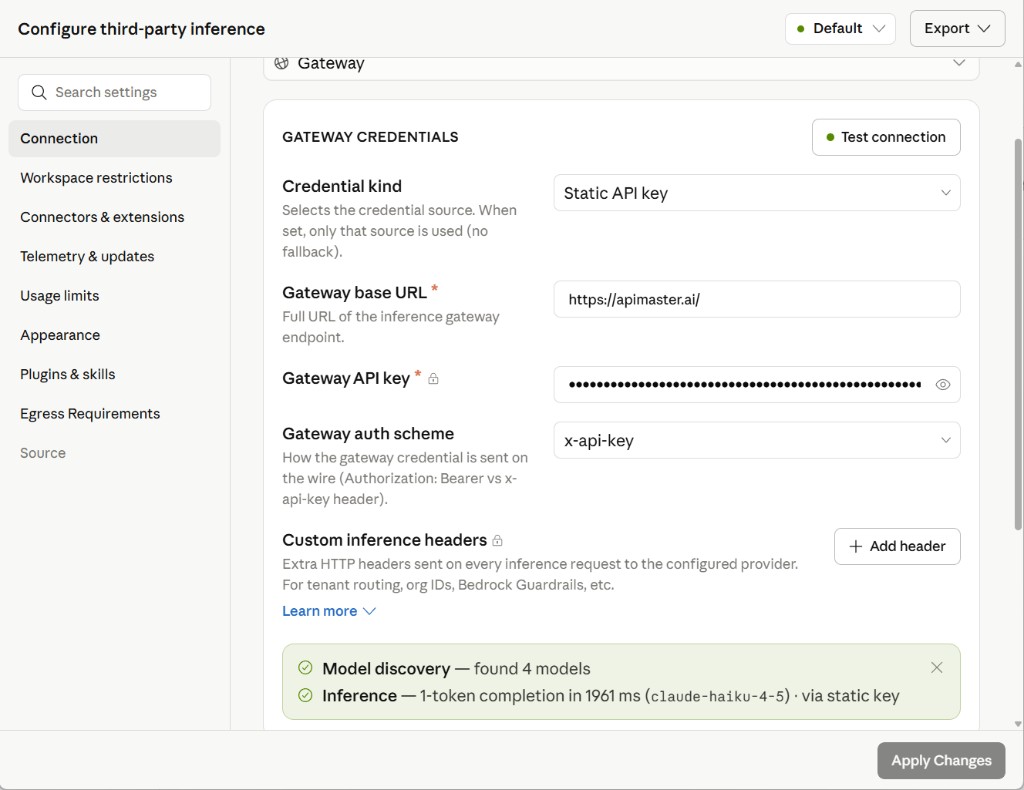
- Test connection — expect model discovery + a short inference test.
- Apply Changes.
If discovery fails, try https://apimaster.ai/v1 as the base URL.
Step 4 — Code mode and chat
- Switch Cowork / Code to Code.
- + New session.
- Confirm Gateway (bottom left) shows APIMaster.
- Pick a marketplace model (e.g.
claude-sonnet-4-6) and send a test message.
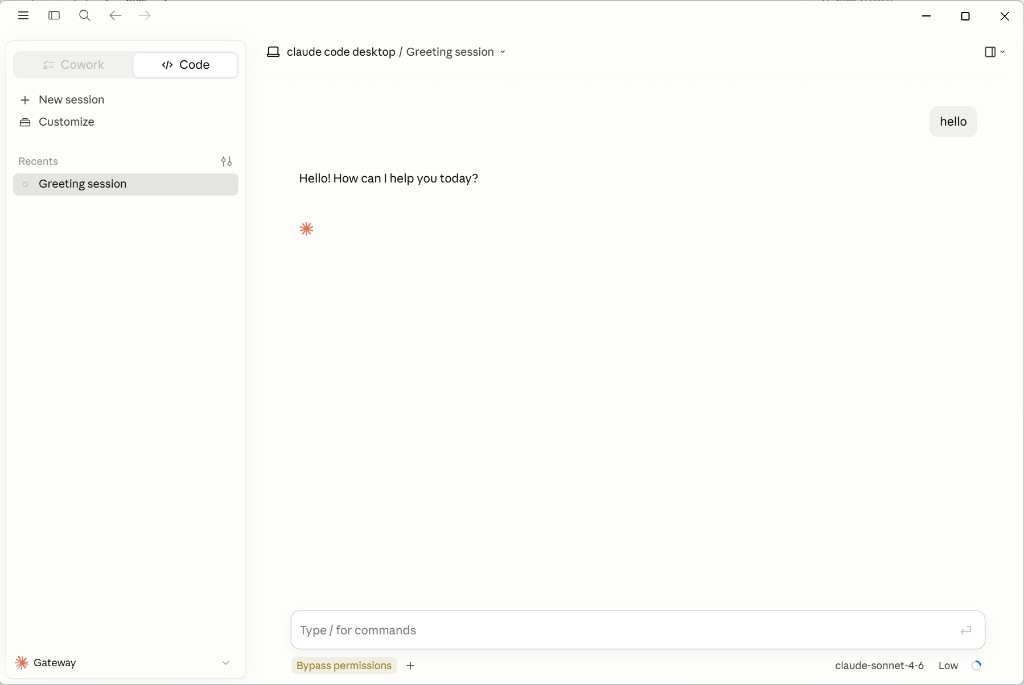
macOS layout matches; use the same Code toggle, Gateway, and model picker.
Troubleshooting
| Issue | Fix |
|---|---|
| No Developer menu | Enable Developer Mode, restart app |
| 401 on test | Check API Key |
| CLI vs Desktop | CLI: /docs/cli/claude-code |