

Dify OpenAI API Key Setup — Custom Model Provider Guide
How to add APIMaster.ai as an OpenAI-compatible model provider in Dify. Set API key and base URL in Dify Settings to use GPT-5.4, Claude, and DeepSeek models at discounted pricing in your Dify workflows.
Dify is a visual agent and workflow platform. APIMaster.ai exposes an OpenAI-compatible API — add it under OpenAI-API-compatible in Dify model settings.
Get your API Key first. Copy the model id from the APIMaster marketplace (e.g.
deepseek-v4-flash).
Prerequisites
- A Dify account (cloud or self-hosted).
- An APIMaster API Key from the console.
- A target model id copied from the marketplace.
Step 1 — Open Model Provider settings
- Log in to Dify and open Settings.
- Select Model Provider in the sidebar.
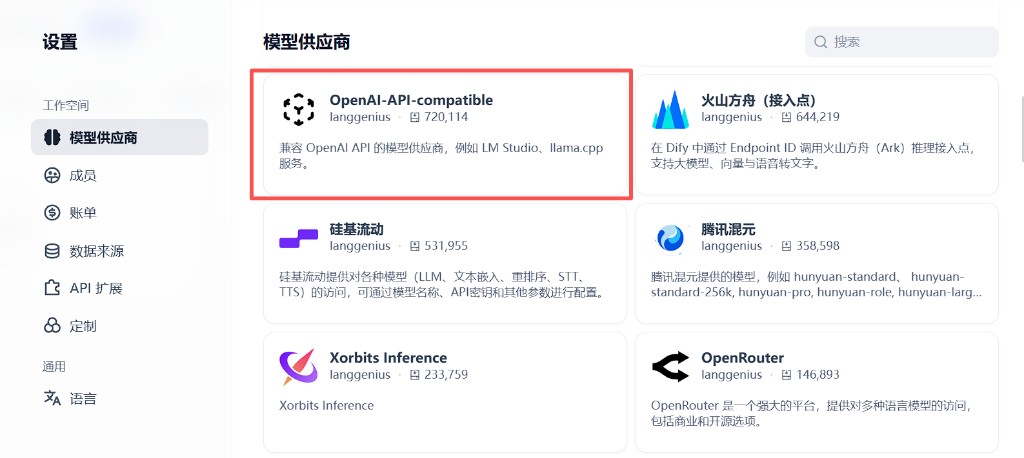
Step 2 — Install OpenAI-API-compatible
Under Install model provider, find OpenAI-API-compatible.
- Install the provider if needed.
- Click + Add model on the OpenAI-API-compatible row.
APIMaster uses the OpenAI-compatible protocol — use this card, not the native OpenAI card.
Step 3 — Credentials and model name
| Field | Value |
|---|---|
| Model name * | Marketplace model id, e.g. deepseek-v4-flash |
| Model type * | LLM |
| Credential name | APIMaster.ai |
| Model display name | Same as model id or a friendly label |
| API Key | Your APIMaster key |
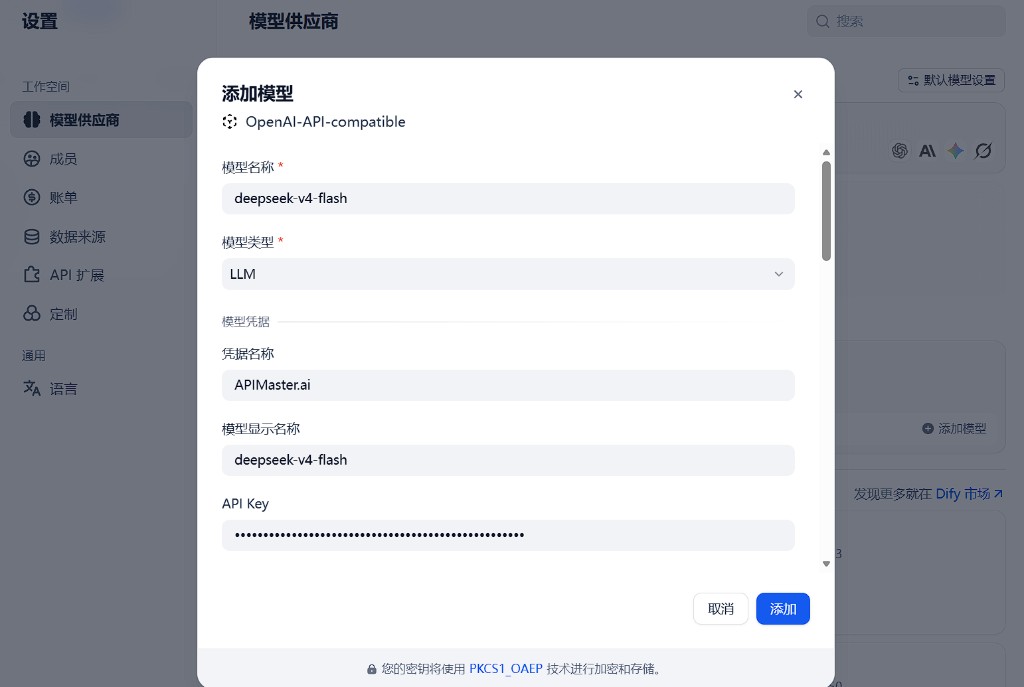
The model name must match the marketplace id exactly.
Step 4 — API endpoint
| Field | Value |
|---|---|
| API endpoint URL * | https://apimaster.ai/v1 |
| Model name in API endpoint * | Same id, e.g. deepseek-v4-flash |
| Chat type | Chat |
| Context length * | e.g. 4096 (adjust per model) |
| Max tokens | e.g. 4096 |
| Reasoning mode | Both if the model supports thinking; otherwise chat-only |
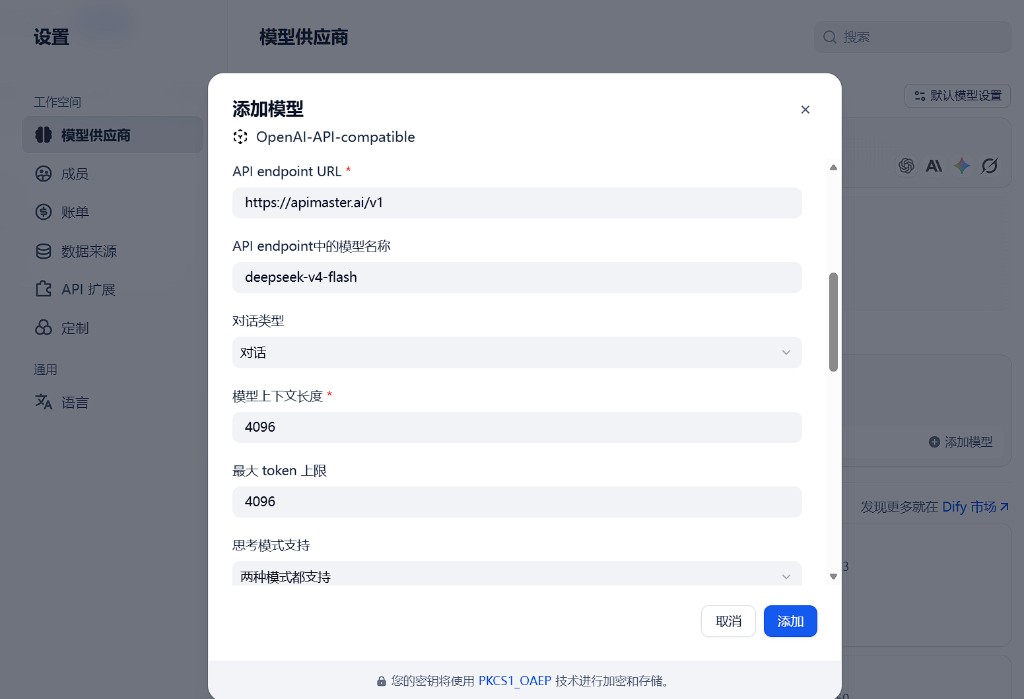
Click Add.
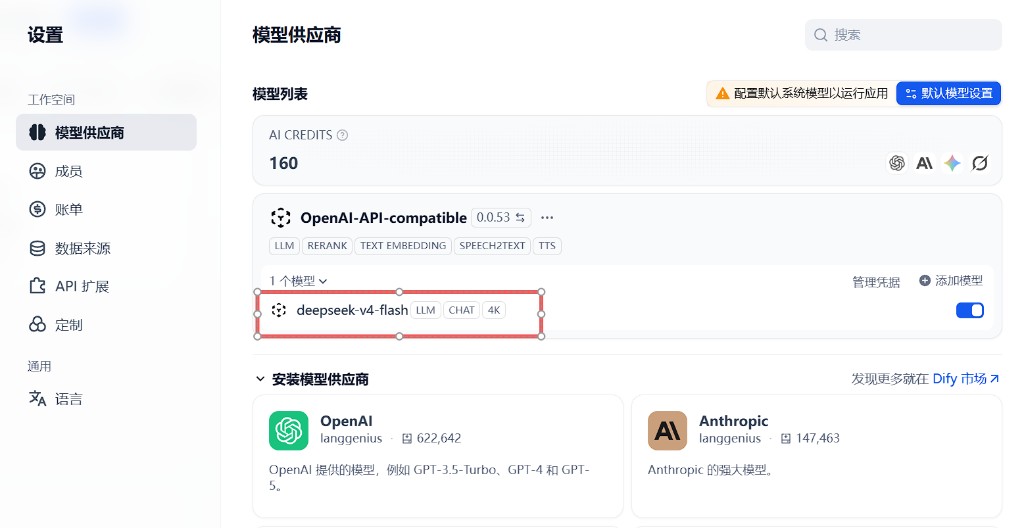
Step 5 — Enable the model
The new model appears under OpenAI-API-compatible (e.g. deepseek-v4-flash · LLM · CHAT · 4K).
- Turn the switch on.
- If prompted, set Default model settings to your APIMaster model.
- Repeat + Add model for additional marketplace ids.
Step 6 — Use in an app
- Open a Chatbot / Agent / Workflow in the studio.
- Pick your APIMaster model in the model selector.
- Run a test message.
Troubleshooting
| Issue | Fix |
|---|---|
| 401 | Check API Key |
| 404 model not found | Re-copy model id from marketplace |
| Default model warning | Settings → Default model settings |