DeepSeek Harness Third-Party Key Setup — APIMaster.ai Custom Provider
Set up an APIMaster.ai custom provider in DeepSeek Harness (dsh), select models, and configure image input in settings.yaml for vision models.
DeepSeek Harness (dsh) is DeepSeek's open-source local agent framework. The Web UI defaults to http://127.0.0.1:3080. The built-in DeepSeek card only accepts an official DeepSeek key. To use GPT / Claude / DeepSeek and other marketplace models via APIMaster, add a custom provider.
Get an API Key first. Keys stay on this machine in
$DSH_HOME/.credentials.yaml(default~/.dsh/). Do not share them in chat or screenshots.
Prerequisites
- Node.js
22.19+or24+. - DeepSeek Harness Web UI running. Fastest start:
npx @deepseek-ai/dsh web
Open the URL printed in the terminal (usually http://127.0.0.1:3080).
3. API Key copied from the APIMaster console.
4. Target model id from the marketplace (e.g. gpt-5.6-sol, claude-sonnet-4-6, deepseek-v4-pro).
Step 1 — Open Models settings
- Open Settings in the Web UI.
- Select Models in the sidebar.
- You will see the built-in DeepSeek card (green dot = official route configured). Do not click Edit on that card — it is the official DeepSeek key, not APIMaster.
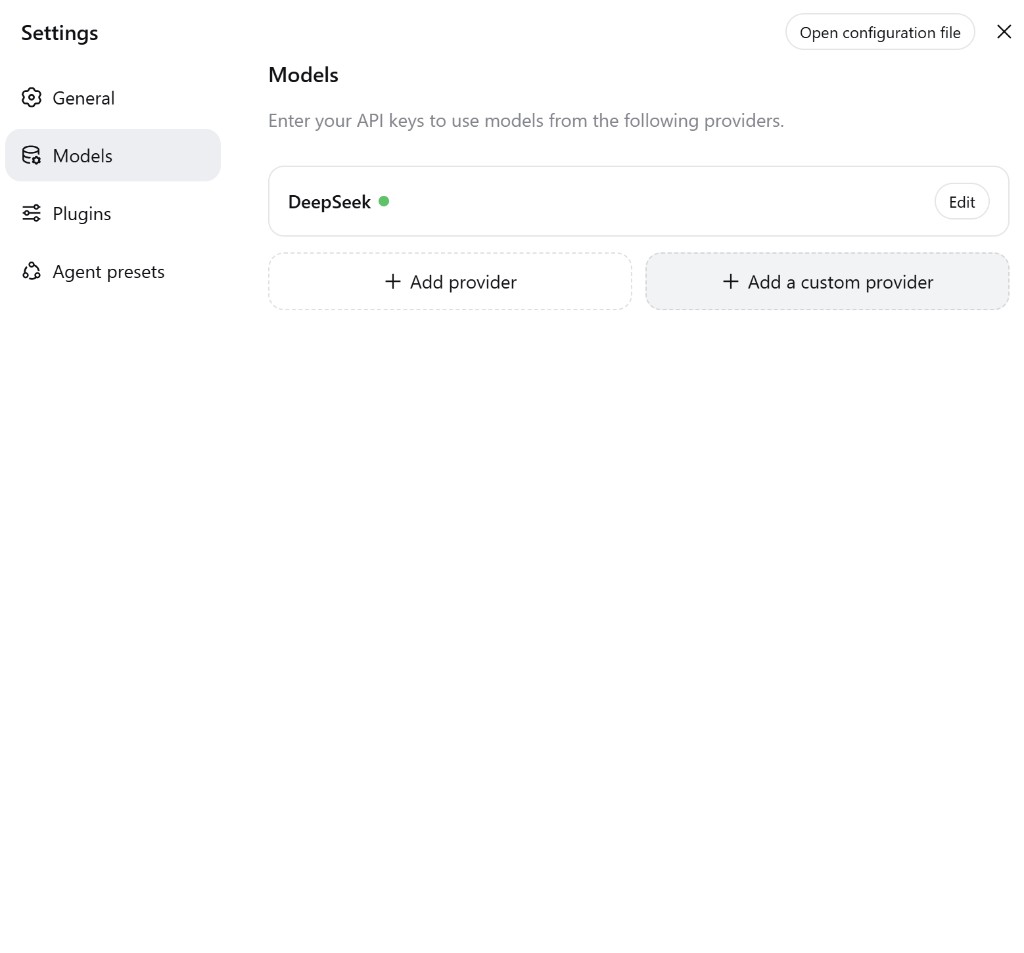
Two buttons at the bottom:
| Button | Use |
|---|---|
| + Add provider | Catalog providers (Anthropic, OpenAI, …) |
| + Add a custom provider | APIMaster (use this) |
Step 2 — Fill in the custom provider
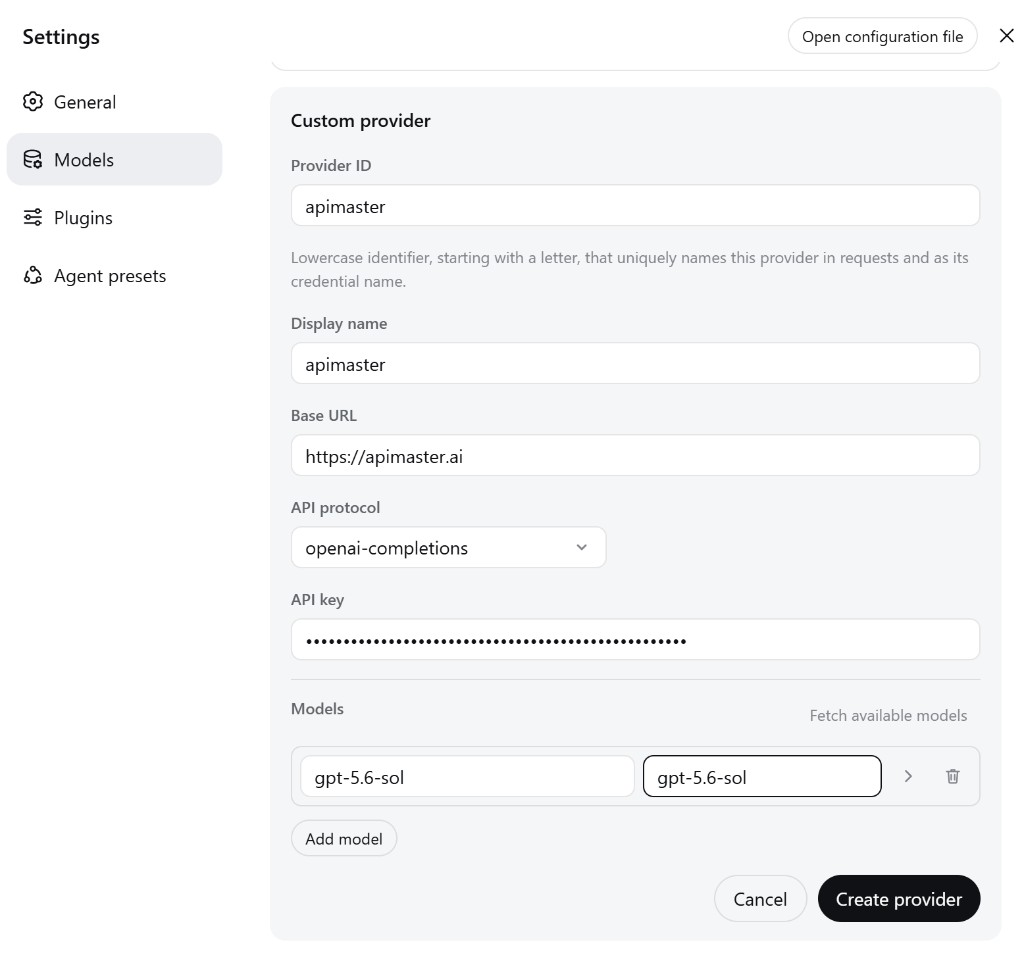
Click + Add a custom provider and set:
| Field | Value |
|---|---|
| Provider ID | apimaster (lowercase, starts with a letter; cannot be renamed after save) |
| Display name | apimaster or APIMaster.ai (group name in the model picker) |
| Base URL | https://apimaster.ai/v1 (include /v1) |
| API protocol | openai-completions |
| API key | Your APIMaster key (write-only; UI shows a mask afterward) |
Add at least one model. Left box = request model id, right box = display name. Use the same marketplace id on both, e.g. gpt-5.6-sol / gpt-5.6-sol. Or click Fetch available models (GET /v1/models) and pick from the list.
Use Add model for more ids (claude-sonnet-4-6, deepseek-v4-pro, …). Click Create provider.
Notes:
- Omitting
/v1breaks Fetch available models and chat. - The Models list is a whitelist for that route. An id not listed fails locally with
UNKNOWN_MODELand never leaves the machine. - For vision models, also check the image input configuration below. Adding a model in the UI alone may not enable images.
Vision / Multimodal Models with Custom Providers
If a model you manually add supports images, you may need to declare that capability in .dsh/settings.yaml. The custom provider form currently has no field for model input types, so configuring the model in the UI alone is not enough when its vision capability is missing from the model catalog.
Open $DSH_HOME/settings.yaml (default ~/.dsh/settings.yaml) and edit the existing provider and model entry. Keep the Provider ID, credentials, Base URL, and other settings you already configured; merge the fields below into that entry instead of replacing the file.
Enable images for a specific model
Add input: [text, image] to the model that supports vision:
llm-pi-ai:
  providers:
    my-gateway:
      apiKeyEnv: GATEWAY_API_KEY
      api: openai-completions
      baseURL: https://your-api-endpoint/v1
      models:
        - id: legacy-chat
        - id: vision-model
          input: [text, image]
The provider and model IDs above are placeholders. For your APIMaster setup, use your saved Provider ID (e.g. apimaster), https://apimaster.ai/v1, and the actual model IDs. apiKeyEnv names an environment variable containing your key; if you saved the key through the UI, preserve the existing credential configuration.
input: [text, image]declares support for both text and image input for that model only. In this example, it applies tovision-modeland does not changelegacy-chat.- If
inputis omitted or set to[], Harness uses the model catalog's capability information. If the catalog has no corresponding information, it falls back to the provider / route'sdefaultInput. - An explicit model-level declaration is especially useful for manually added models whose vision capability the catalog does not recognize.
Set a default for a provider's models
If all manually added models under a custom provider support images, setting defaultInput: [text, image] on the provider is more concise:
llm-pi-ai:
  providers:
    vision-gateway:
      apiKeyEnv: GATEWAY_API_KEY
      api: openai-completions
      baseURL: https://your-api-endpoint/v1
      defaultInput: [text, image]
      models:
        - id: first-model
        - id: second-model
| Field | Scope | When to use |
|---|---|---|
input |
One model's input capabilities | Prefer this when only some models support images |
defaultInput |
Default input capabilities for models on that provider / route | Convenient when all manually added models support images |
Resolution order: non-empty model input → model catalog capability information → provider / route defaultInput (which defaults to [text]). defaultInput is a fallback; it does not override an explicit model declaration or known catalog capabilities. If the catalog describes a vision model as text-only, set input: [text, image] on that model explicitly.
These settings declare capabilities; they do not add vision support to a text-only model. The model and the custom provider's API must both support the image input format being sent.
Save the file and send a new request with an image. Harness re-reads settings on the next request, so a restart is normally unnecessary. If the change does not take effect, reload the UI or restart DeepSeek Harness and select the configured model again.
Step 3 — Confirm the provider is saved
Back on Models you should see:
- DeepSeek (official; keep it if you want — it does not conflict)
- apimaster with a grey Custom badge and a green dot
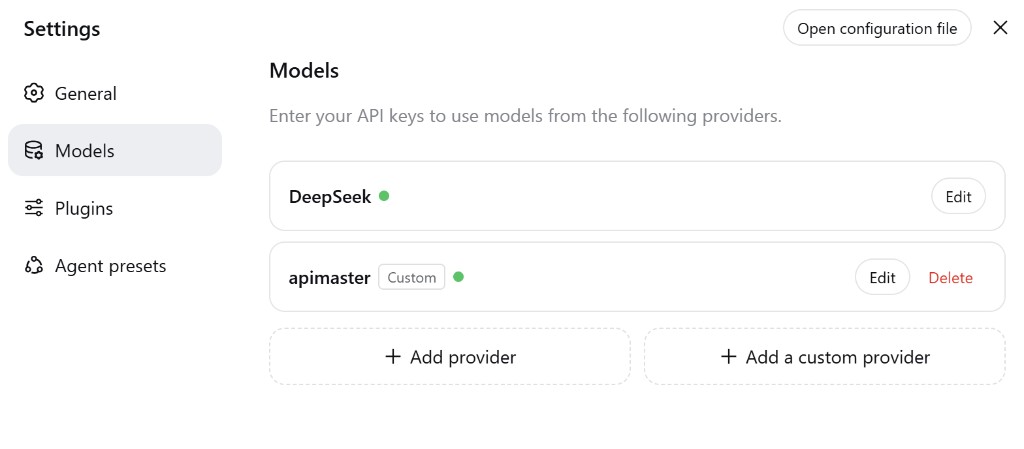
To change the key or models later, click Edit. Do not create a second custom provider with the same ID.
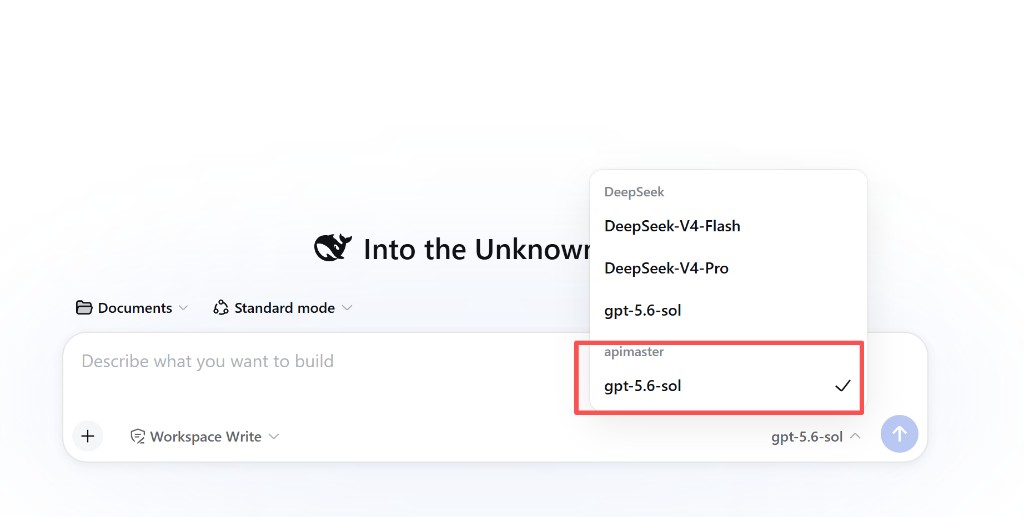
Step 4 — Select the model in chat
- Return to the home / session composer.
- Click the model name on the right of the input bar.
- Under the apimaster group, select the model (e.g.
gpt-5.6-sol).- The picker may also list a DeepSeek group. Choose the row under apimaster so traffic uses your third-party key.
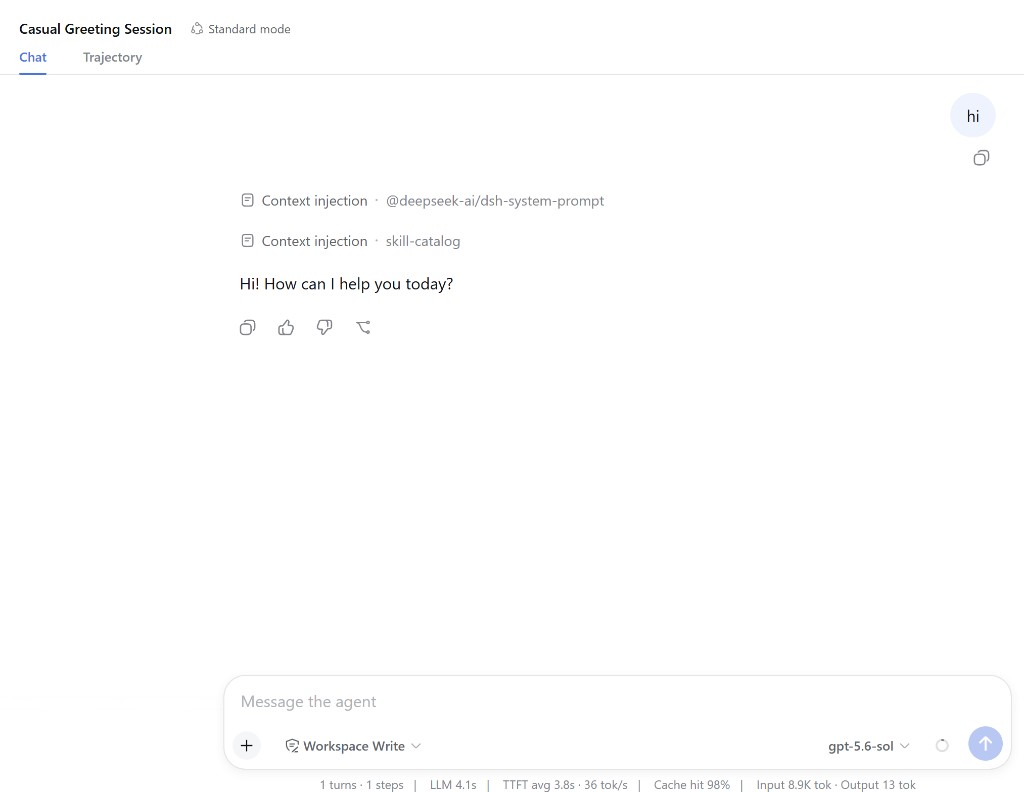
Step 5 — Send a test message
- Send a short message such as
hi. - A normal reply plus footer metrics (LLM / TTFT / tok) means the key and Base URL work for text requests. To verify vision, also send an image after configuring image input.
Context injection · @deepseek-ai/dsh-system-promptis Harness's own system prompt, unrelated to APIMaster.
Troubleshooting
| Issue | Fix |
|---|---|
| Cannot find the custom form | Settings → Models → + Add a custom provider (not + Add provider, not DeepSeek Edit) |
401 / MISSING_CREDENTIAL |
Edit and paste the full key; stored in ~/.dsh/.credentials.yaml |
| 404 / connection error | Base URL must be https://apimaster.ai/v1 |
UNKNOWN_MODEL |
Add that model id under the custom provider's Models list |
| Fetch available models fails | Check the key and /v1; otherwise type ids by hand |
| Chat still uses official DeepSeek | Pick the model under the apimaster group |
| Images refused | Check the model's vision capability and input / defaultInput in ~/.dsh/settings.yaml; see the image troubleshooting checklist below |
| Wrong Provider ID | IDs cannot be renamed; create a new provider and Delete the old one |
Images are not working with a manually added model
If text requests work but requests containing images fail, check:
- Model support: the selected model actually supports vision / image input.
- Model configuration: its entry in
.dsh/settings.yamldeclaresinput: [text, image]if the catalog does not identify its vision capability. - Provider default: alternatively, the provider has
defaultInput: [text, image]where the fallback applies. If a model declaration or catalog entry says text-only, use model-levelinputto explicitly enable images for a supported model. - Configuration loaded: save the settings file used by the running instance and retry. If the change is not reflected, reload the UI or restart DeepSeek Harness.
- API compatibility: the custom provider's API protocol and endpoint accept the image input format sent by Harness. A successful text request alone does not verify image compatibility.
See Vision / Multimodal Models with Custom Providers for both YAML examples.
Checklist
-
npx @deepseek-ai/dsh webis running - Used + Add a custom provider, not official DeepSeek Edit
- API protocol =
openai-completions - Base URL =
https://apimaster.ai/v1 - Model id from the marketplace appears under the apimaster group
-
higets a reply - For vision models, image input is declared or resolved from the catalog, and a request containing an image succeeds