
Open WebUI API Key — Custom OpenAI Provider Setup
How to set up Open WebUI with Docker and configure APIMaster.ai as a custom OpenAI-compatible connection. Add your API key and base URL in Settings → Connections to access GPT-5.4, Claude, and DeepSeek models.
Open WebUI is a self-hosted chat UI for LLMs. APIMaster.ai exposes an OpenAI-compatible API at https://apimaster.ai/v1 — configure it under Connections to use marketplace models.
Get an API Key first. The model id you pick in chat must match the marketplace exactly (e.g.
gpt-5.4,claude-sonnet-4-6).
Prerequisites
- Docker installed (macOS, Linux, or Windows).
- WebSocket connectivity allowed (required by Open WebUI — see the official Quick Start).
- An APIMaster API Key from the console.
Step 1 — Install Open WebUI with Docker
These three steps follow the Open WebUI Quick Start with Docker.
1.1 Pull the image
docker pull ghcr.io/open-webui/open-webui:main
Docker Hub equivalent: openwebui/open-webui:main.
1.2 Run the container
docker run -d -p 3000:8080 \
  -v open-webui:/app/backend/data \
  --name open-webui \
  ghcr.io/open-webui/open-webui:main
| Flag | Purpose |
|---|---|
-p 3000:8080 |
UI at http://localhost:3000 |
-v open-webui:/app/backend/data |
Persistent storage |
For production, pin a release tag (e.g. :v0.9.6) — see image variants.
1.3 Open the UI
http://localhost:3000
The first account created becomes Administrator; later sign-ups need approval (after install).
Step 2 — Open Connections settings
- Log in as admin.
- Open Settings → Connections.
- Under OpenAI API, turn the main switch on.
- Set URL to:
https://apimaster.ai/v1
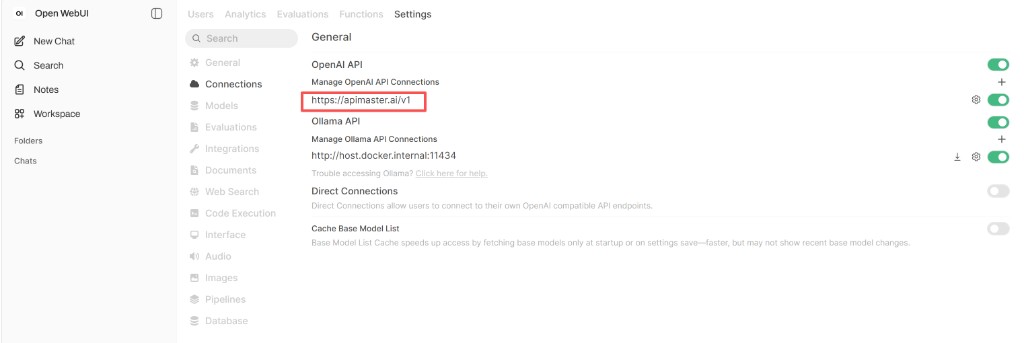
Use the gear or + next to the URL to open the connection editor (next step).
Step 3 — Edit the APIMaster connection
In Edit Connection:
| Field | Value |
|---|---|
| URL | https://apimaster.ai/v1 |
| Auth | Bearer |
| API Key | Your APIMaster key |
| Provider | Default |
| API Type | Chat Completions |
| Model IDs | Leave empty — loads models from https://apimaster.ai/v1/models |
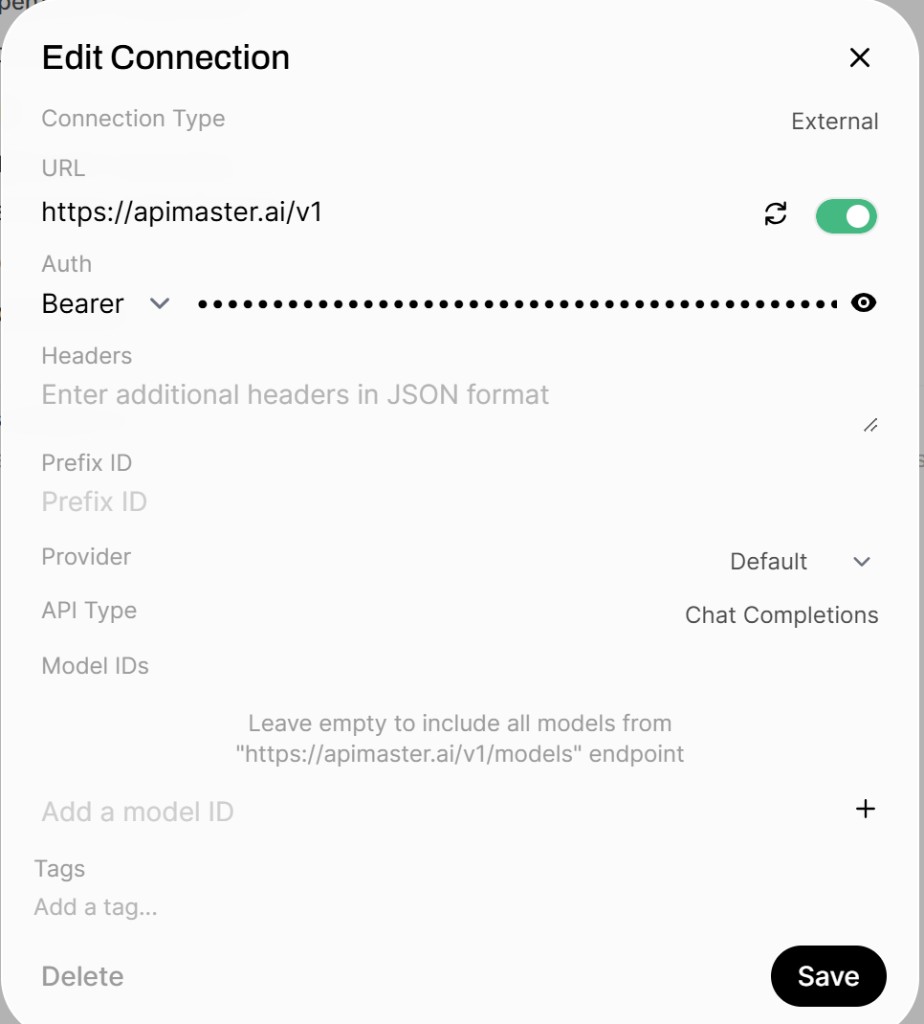
Leave Headers and Prefix ID empty. Enable the connection toggle, then Save.
Step 4 — Select a model and chat
- Go to New Chat.
- Open Select a model and pick an APIMaster model (e.g.
gpt-5.4). - Optionally Set as default.
- Send a test message.
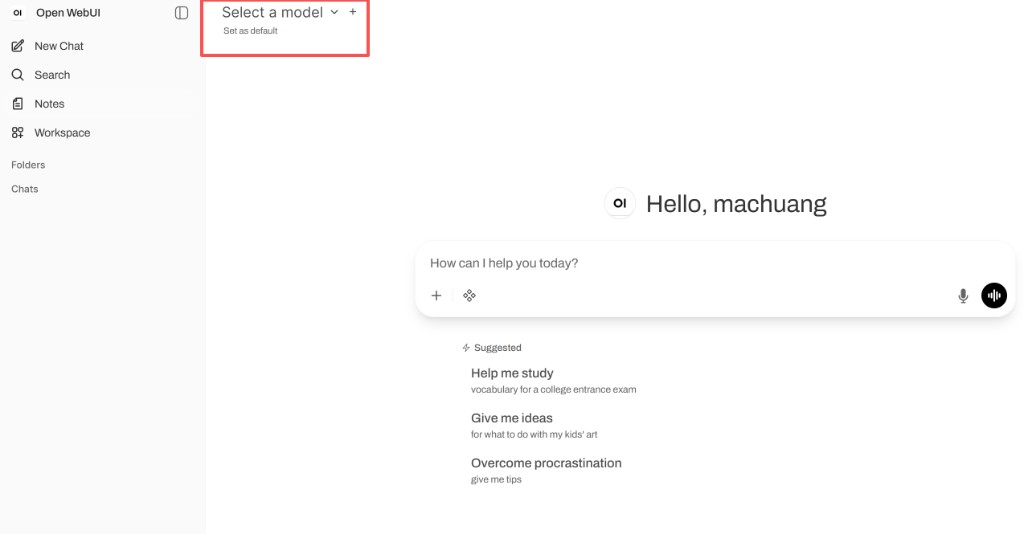
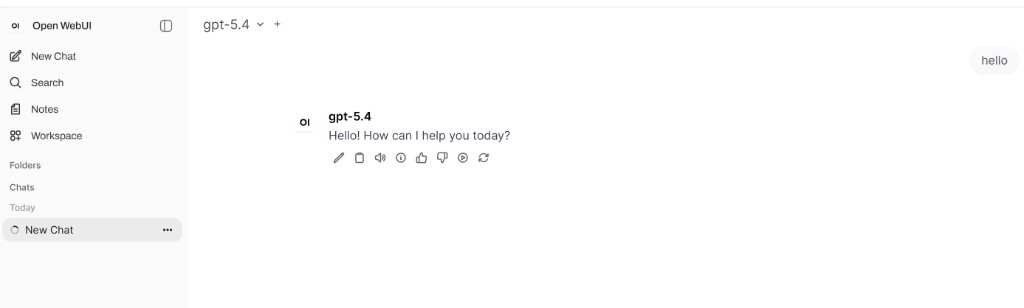
If a model is missing, verify your key, group access, and the marketplace model id; you can also add a specific id under Model IDs.
FAQ
Empty model list or connection errors
- URL must be
https://apimaster.ai/v1. - Validate the key with first request.
- Ensure
https://apimaster.ai/v1/modelsis reachable from your machine.
WebSocket / live updates
Open WebUI needs WebSocket support; configure your reverse proxy if not using localhost.
Updates
See Open WebUI updating: remove container → pull image → run again with the same volume.