

Kilo Code API Key Setup — VS Code Extension Guide
How to add APIMaster.ai as an OpenAI-compatible custom API provider in Kilo Code (VS Code extension). Set base URL and API key to use Claude, GPT-5.4, and DeepSeek at discounted pricing.
Kilo Code is an AI coding extension for VS Code / Cursor. APIMaster.ai is OpenAI-compatible — add it as a Custom provider in Kilo settings (no .env required).
Get your API Key first. Never paste real keys into chat or screenshots.
Prerequisites
- VS Code or Cursor installed.
- Kilo Code extension installed from the marketplace.
- APIMaster API Key ready (
your_apimaster_keyplaceholder below).
Step 1 — Open Providers
- Confirm Kilo Code is installed under Extensions.
- Open Kilo Settings (sidebar or gear icon).
- Select Providers on the left.
- Under Custom provider, click + Connect.
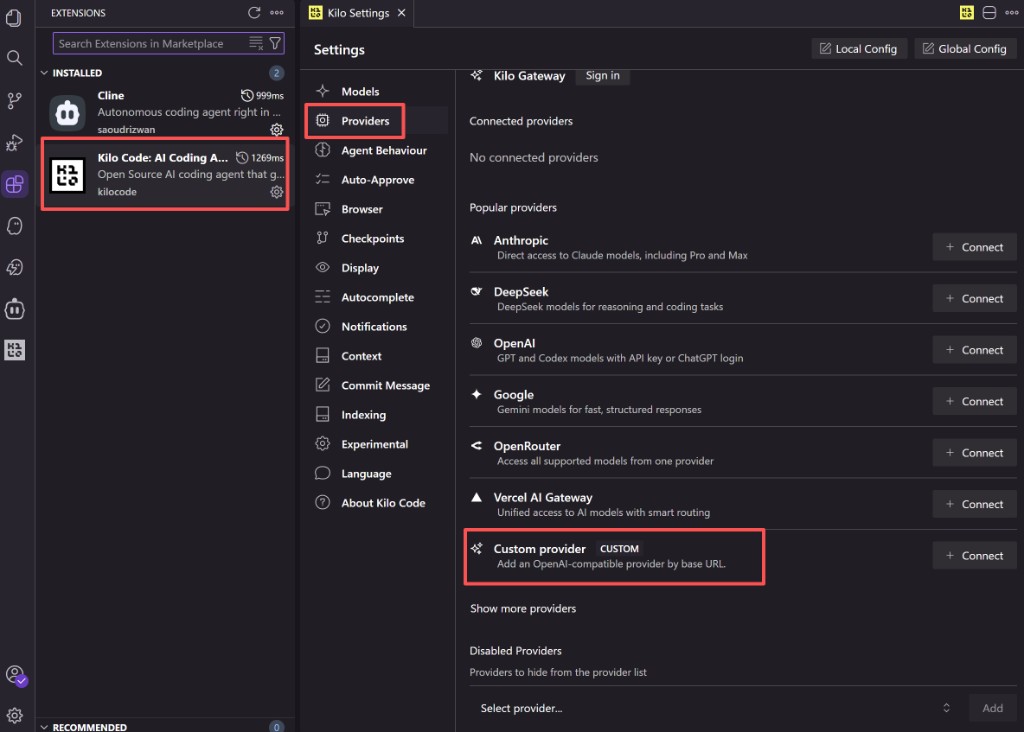
Step 2 — Custom provider form
| Field | Value |
|---|---|
| Provider ID | apimaster |
| Display name | APIMaster.ai |
| Base URL | https://apimaster.ai/v1 |
| API key | Your APIMaster key |
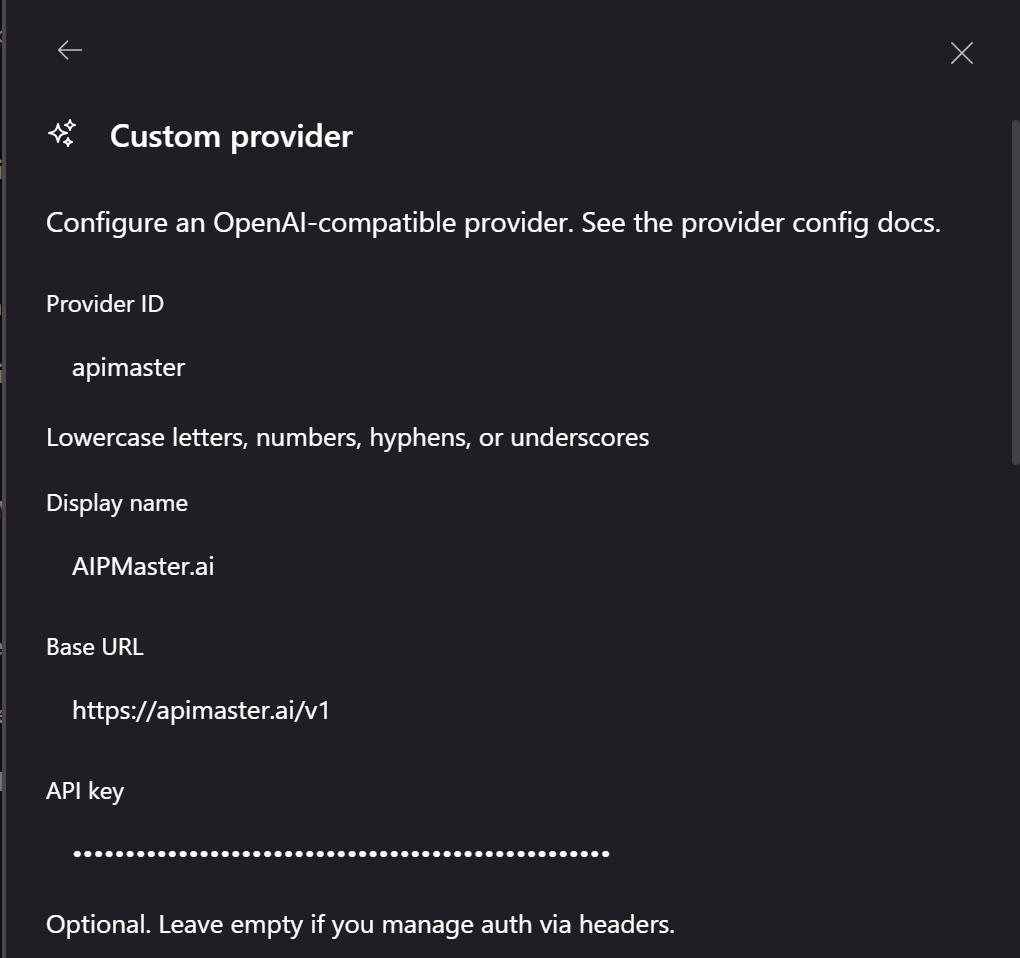
Leave Headers empty unless Kilo docs require otherwise.
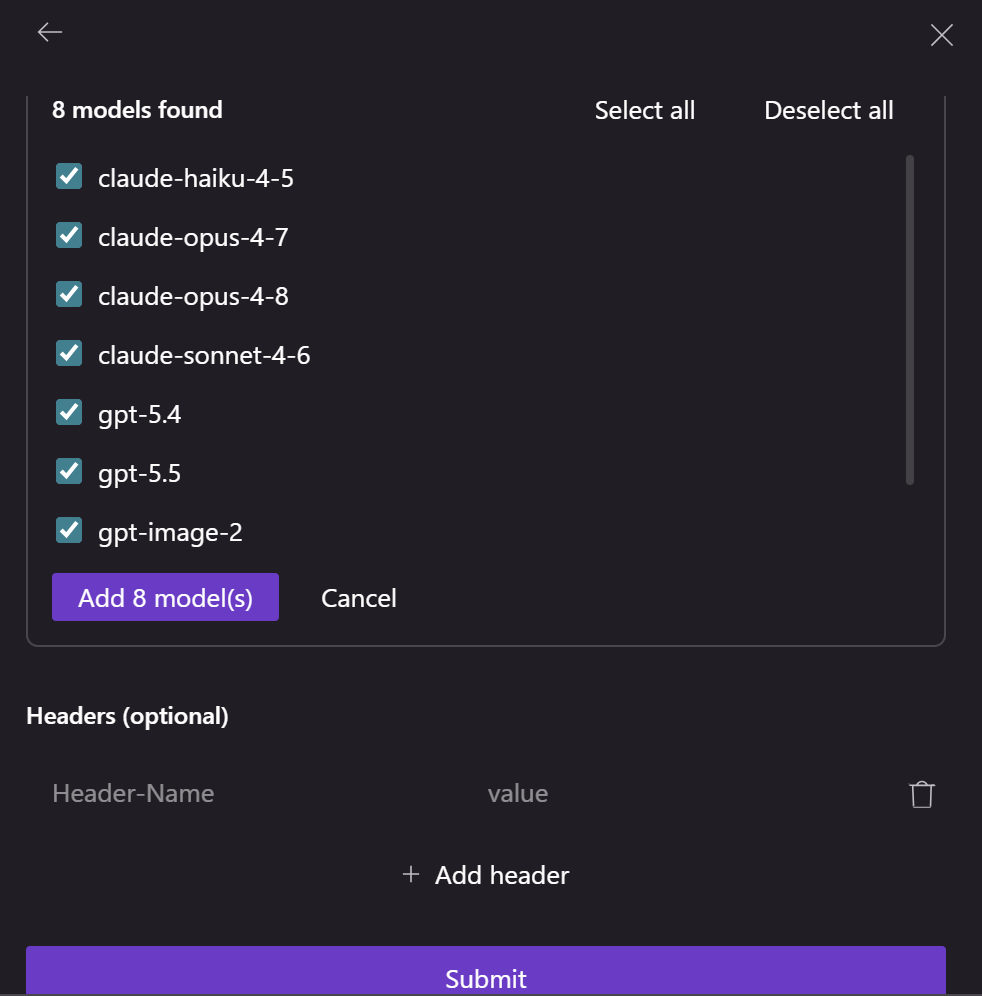
Step 3 — Add models
- Check the model ids you need (e.g.
claude-sonnet-4-6,gpt-5.4). - Click Add N model(s).
- Click Submit.
You should see APIMaster.ai under Connected providers (CUSTOM tag).
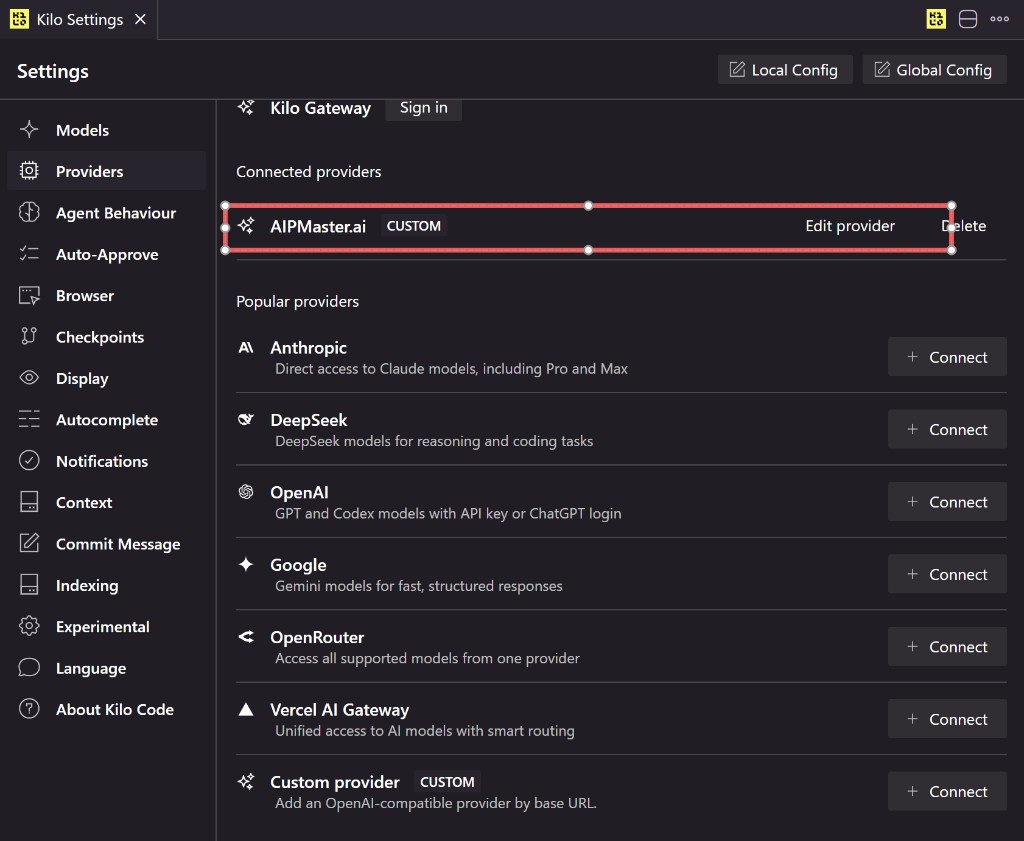
Step 4 — Pick model in chat
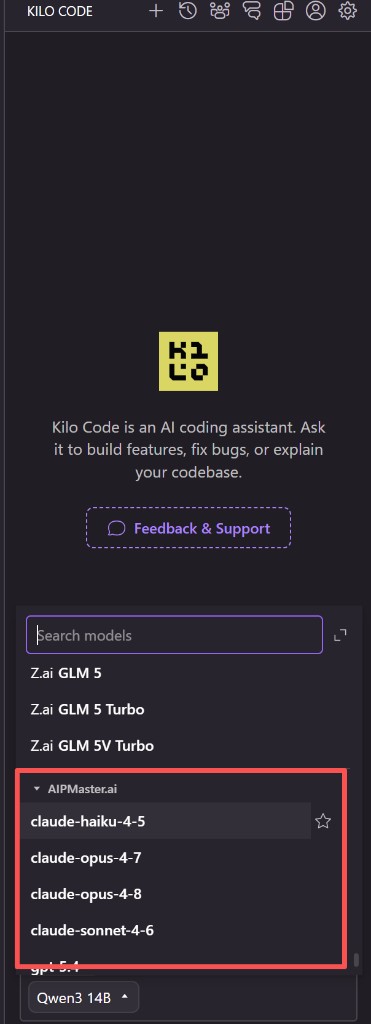
Open a session, use the model dropdown below the input, and choose a model under APIMaster.ai.
Step 5 — Test
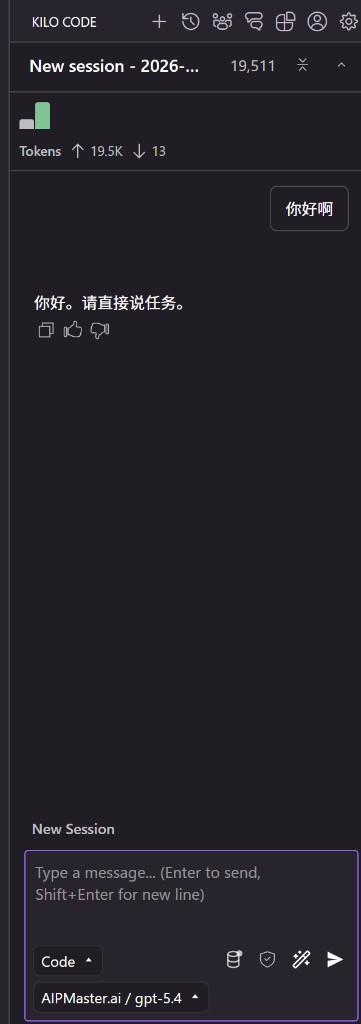
Select e.g. APIMaster.ai / gpt-5.4, send Hello, and confirm a reply.
FAQ
| Issue | Fix |
|---|---|
| 401 | Re-copy key from console |
| Bad URL | Use https://apimaster.ai/v1 |
| Empty model list | Check key permissions; connectivity test |
| Wrong model | Pick from APIMaster.ai group in dropdown |
Checklist
- Custom provider connected with correct Base URL and key
- Models added and Submit done
- Chat uses
APIMaster.ai / model-id - Test message succeeds